Skip to content
2.0Every cluster, every cloud, in one calm hub

Kubernetes,
beautifully.

JET Pilot is a fast, native and open-source Kubernetes desktop client. Every cluster, from your kubeconfig or your cloud, in one calm app that updates live.

Free and MIT licensed · macOS, Windows and Linux

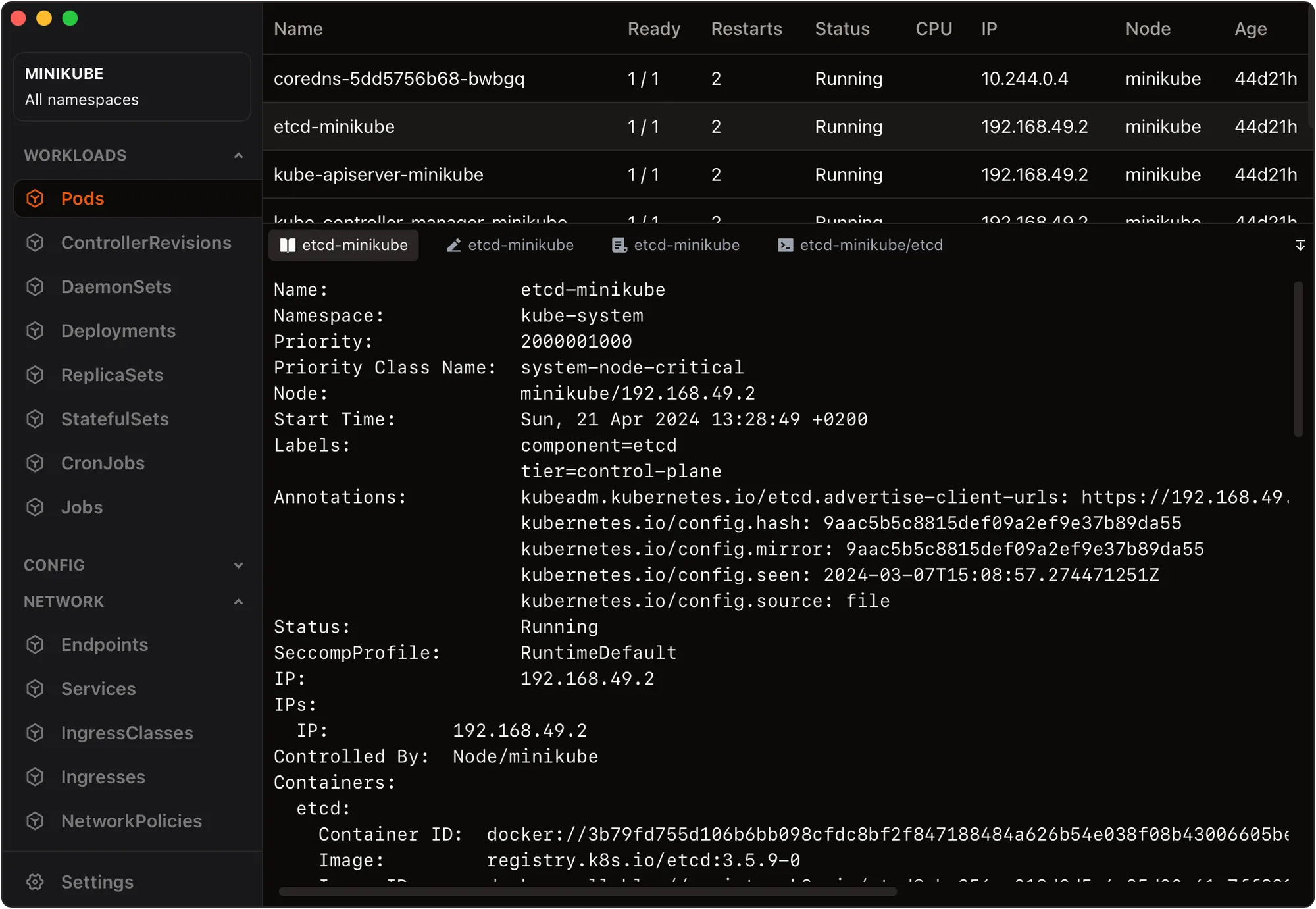
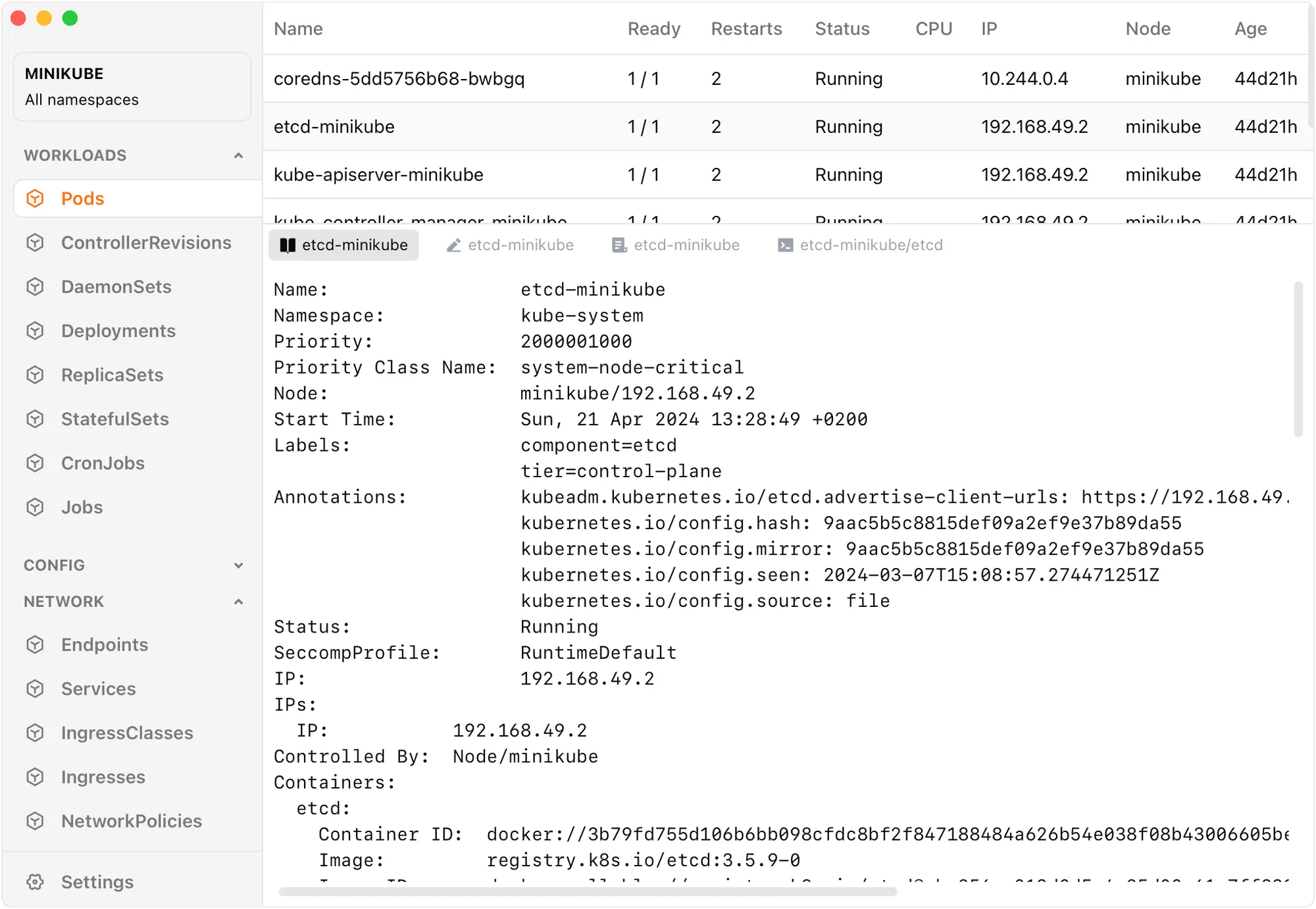
JET Pilot showing pods from two clusters, prod-eu-west-1 and staging-us-east-2, in one table with Context and Namespace columns, live CPU and memory sparklines and colour-coded statuses
The Clusters hub: clusters in favourites and folders with environment badges, versions and statuses, and the details panel of Checkout, a protected production GKE cluster

New in 2.0

Every cluster, one hub.

Every cluster from every kubeconfig and cloud account, named, sorted and checked, a keystroke away.

  • Names, colours, folders and tags
  • Status, version and sign-in at a click
  • Open it with ⌘O or Ctrl+O

New in 2.0

Nine clouds, built in.

Connect an account and JET Pilot finds its clusters, and keeps the list current.

The Add a cluster dialog: nine clouds (AWS, Google Cloud, Azure, DigitalOcean, Akamai, Civo, Scaleway, Vultr and Exoscale) above options to paste a kubeconfig, import a file or enter a cluster by hand
  • AWS, Google Cloud, Azure, DigitalOcean, Akamai, Civo, Scaleway, Vultr and Exoscale
  • Or paste, import or type a kubeconfig
  • Credentials in your system keychain
Signing in to AWS inside JET Pilot: the device code QXRW-PLMK, the verification address device.sso.eu-west-1.amazonaws.com and an Open browser button

New in 2.0

Sign in, in the app.

Device codes and browser sign-ins for kubelogin, gcloud, az, AWS and OIDC plugins appear right in JET Pilot.

  • Lists, logs and port forwards reconnect
  • Nothing opens a browser on its own
The pods table with CPU and memory sparkline columns next to each pod's status

Live, not polled.

Tables stream changes straight from the API server, so a scale lands on screen in about 200 ms.

  • CPU and memory sparklines for every pod
  • A 2,000-pod snapshot in about 0.7 s

Every pod. One stream.

Open logs on a Deployment, StatefulSet, DaemonSet, Job or Service and follow all of its pods at once.

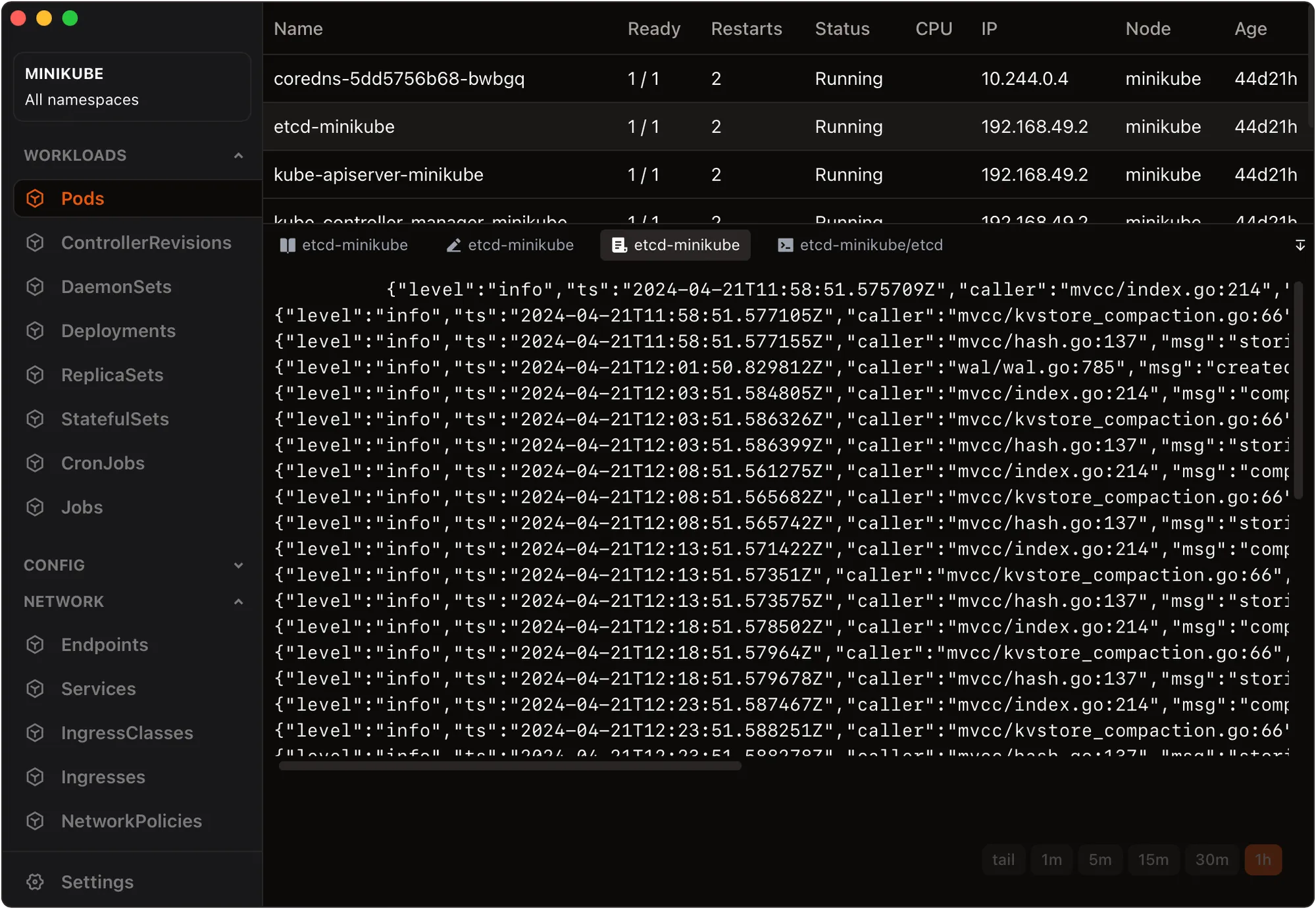
Logs for the payments-api Deployment: four pods listed with their own colours, container and field filters, and interleaved log lines prefixed with the pod and container they came from
  • Colour-coded per pod
  • JSON parsed into fields you can filter on
  • Search, pause and export
The resource graph with the checkout-api Deployment selected: its Service, PodDisruptionBudget and ConfigMap highlighted along the path, and a side panel listing its pods, relationships and replica status

What’s broken, first.

Every app gets its own lane, from Ingress to Service to Pods, and health rolls up from pods to apps.

  • Missing references as red dashed nodes
  • P shows only the problems

Everything else.

The details you reach for every day, all in the free app.

  • The command palette open over the pods table, listing actions such as Switch workspace, Open terminal, Switch context, Change a setting and Add cluster

    Command palette

    ⌘K or Ctrl+K for resources, settings and clusters, and k9s-style keys for the rest.

  • The context switcher open with two active contexts, prod-eu-west-1 and staging-us-east-2, each with the payments and checkout namespaces selected

    Several clusters, one table

    Pick contexts and namespaces from one switcher; tables merge them, with a Context column.

  • The workspace switcher listing Payments on-call, Checkout incident, Staging rollout and Platform & ingress with their shortcuts

    Workspaces

    Save contexts, tabs and port forwards, switch in one keystroke, and split two tabs side by side.

  • Reviewing changes to the payments-api Deployment: a side-by-side diff with replicas changed from 4 to 6, and a “Server dry run passed” status next to the Apply button

    Review before you apply

    YAML with your cluster’s own schemas, then a diff and a server-side dry run.

  • Rollout history for the payments-api Deployment: revisions with their change causes, and a diff between the current revision and r6 with a “Roll back to r6” button

    Roll out, roll back

    Rollout history with a diff per revision, pause, restart and a safe rollback.

  • The side panel open on a crash-looping pod: its container, conditions and labels

    Details at a click

    Containers, conditions, labels and events in a side panel, or the full describe.

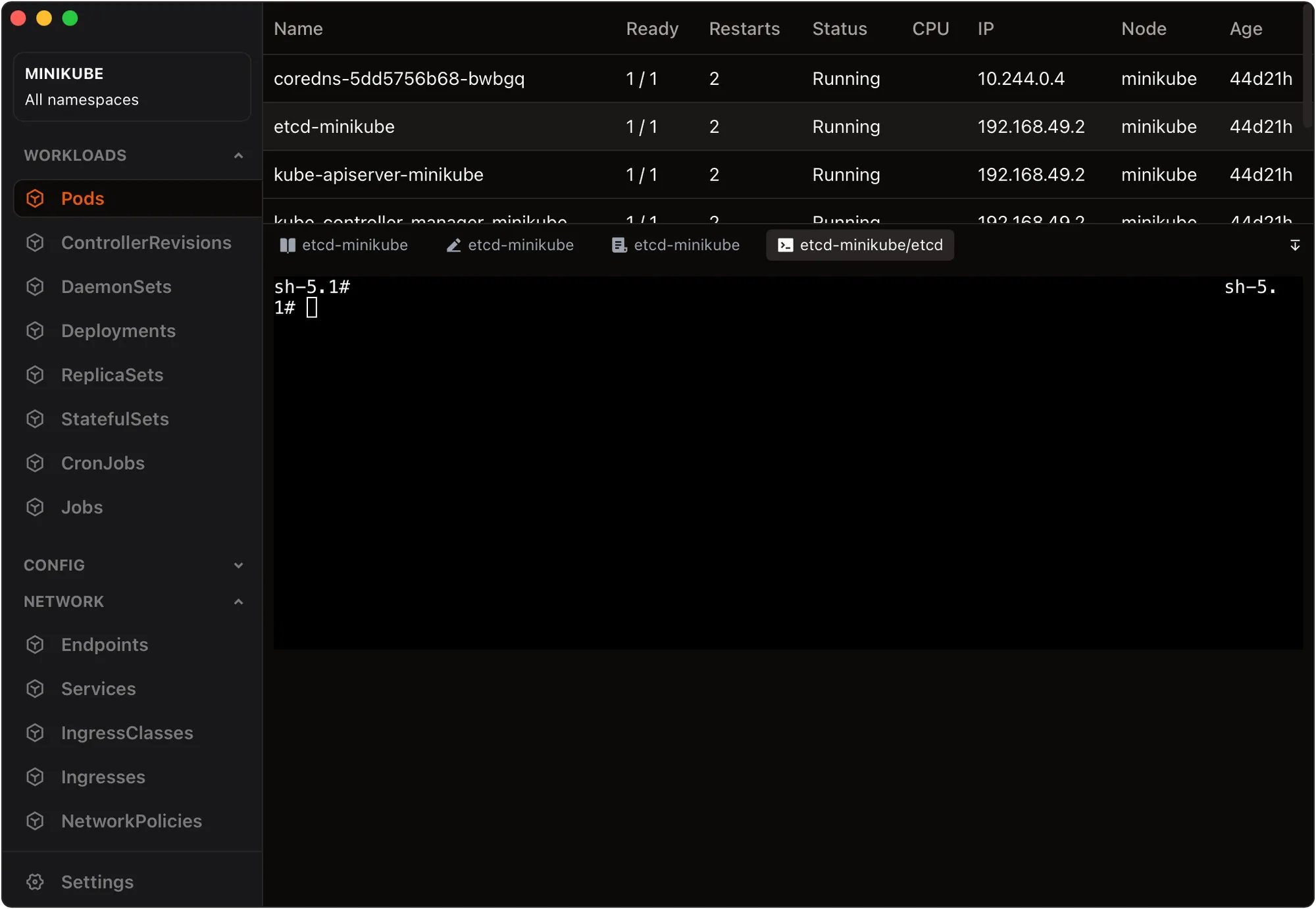
  • The built-in terminal panel below the pods table, opened for prod-eu-west-1 with a note that KUBECONFIG points to a temporary copy

    Built-in terminal

    Ctrl+` opens kubectl on the current context, without touching your kubeconfig.

  • Production guardrailsNew

    Type the name before anything destructive, or make a cluster read-only.

  • Keychain credentialsNew

    Tokens and keys stay in your system keychain, and added clusters work in kubectl and k9s.

  • Paste, import or typeNew

    Add clusters from a kubeconfig, or by hand with a token or client certificate.

  • A guided first launchNew

    Finds your kubeconfig files and tools, and connects your clouds in a few steps.

  • Settings you can searchNew

    Every preference in one searchable place, or as settings.json with validation.

  • Helm releases

    Upgrade with a values diff, read the history, roll back or uninstall.

  • Shells and debugging

    Shells into any container, ephemeral debug containers, node shells and file copies.

  • Port forwards

    Start, stop and open forwards, or save profiles that start with the app.

  • Hardened by default

    A strict content security policy, minimal permissions, and Secrets that stay in memory.

Your colours.
Every pixel.

Pick one of 14 built-ins or bring your own. The sidebar, tables, YAML editor and terminal all follow, in light and dark.

JET Pilot's theme library under Settings › Appearance: built-in themes as cards, each with a live miniature of the app in its colours
  • Bring the theme you use in your editor, syntax and terminal colours included
  • One-click installs from an open theme gallery
  • A JSON editor with a live preview: two colours are enough

Take the controls.

Free for everyone, forever. Always the latest release.

Heads-up for macOS

JET Pilot isn’t notarized by Apple: it’s free and open source, and we’d rather not pay Apple’s yearly fee. So on first launch macOS may say the app is “damaged” or refuse to open it. Remove the quarantine flag once and you’re good. Auto-updates keep working.

xattr -dr com.apple.quarantine "/Applications/JET Pilot.app"

Run it in Terminal after moving JET Pilot to Applications. Not needed with Homebrew: the tap does it for you.

Prefer Homebrew?

Install from our tap in one line. It opens right away, no quarantine step.

brew install --cask unxsist/tap/jet-pilot

Installed it from homebrew/cask before? Run brew uninstall --cask jet-pilot first: Homebrew’s main repository only carries notarized apps now. Older versions are on GitHub Releases.

Built in the open.

MIT licensed and developed on GitHub since December 2023. No paid tier, no feature gates, no account wall: a tool made by people who use Kubernetes every day.

Questions, answered.

Something else? Open a GitHub issue and we’ll take a look.

Is JET Pilot really free?
Yes. JET Pilot is open source under the MIT licence. There is no paid tier, no trial and no account — download it and go.
macOS says JET Pilot is “damaged” or can’t be opened. What now?
Nothing is wrong with the app: JET Pilot isn’t notarized by Apple, so macOS quarantines it after download. Open Terminal and run xattr -dr com.apple.quarantine "/Applications/JET Pilot.app" once. Auto-updates keep working afterwards. Installing with Homebrew (brew install --cask unxsist/tap/jet-pilot) takes care of this for you.
Windows SmartScreen warns me about the installer.
The Windows installers aren’t code-signed, so SmartScreen may show a warning the first time. Click More info and then Run anyway.
How do I run the AppImage on Linux?
Make it executable first with chmod +x JET.Pilot_*.AppImage, then run it. Prefer packages? Use the .deb (Debian, Ubuntu) or .rpm (Fedora, RHEL) instead.
What do I need to connect to my clusters?
A kubeconfig, or a cloud account. JET Pilot finds the kubeconfig files you already have, and from 2.0 it connects AWS, Google Cloud, Azure, DigitalOcean, Akamai, Civo, Scaleway, Vultr and Exoscale and finds the clusters in them. You can also paste a kubeconfig, import a file or enter a cluster by hand. It needs kubectl (plus helm for the Helm views); if you don’t have them, Settings › Advanced downloads checksum-verified copies. It works with any conformant cluster you can reach, including exec-plugin and SSO sign-ins such as kubelogin, AWS IAM Identity Center, gcloud and az.
How does signing in work?
When a session runs out, JET Pilot shows a quiet notice and lets you sign in without leaving the app: device codes and sign-in links show up in a dialog, and your views, log streams and port forwards reconnect on their own. Background checks never start a sign-in, so no browser window opens out of nowhere.
Can I use several clusters and kubeconfig files at once?
Yes. JET Pilot finds ~/.kube/config, $KUBECONFIG, ~/.kube/*.yaml and ~/.kube/config.d, and the Clusters hub lists every context in them. Select several contexts and namespaces together: tables aggregate everything and show Context and Namespace columns so you always know where a resource lives.
How does JET Pilot stay up to date with my cluster?
From v1.37, lists stream changes from the Kubernetes API through watches instead of polling kubectl. Changes show up in a fraction of a second — about 200 ms from scaling a Deployment to the update on screen in our tests against a real kube-apiserver — and coming back to a view is instant.
Can I use the theme from my editor?
Yes. From v1.38, JET Pilot imports the colour theme formats editors commonly use: JSON colour themes (JSONC and include chains too) and .tmTheme-style colour schemes. Drop the file on Settings › Appearance, or install a theme from an open theme gallery inside the app. The theme’s interface colours become JET Pilot’s palette, its syntax colours the YAML editor and its terminal colours the terminal. Want to see it first? Preview your theme on the website: it’s converted in your browser.
Why does the gallery only install MIT-licensed themes?
JET Pilot is MIT licensed, and we want everything it downloads and installs for you to fit that licence without reviewing extensions one by one. So the gallery only installs themes whose licence is MIT, or allows MIT (such as MIT OR Apache-2.0). That still covers most popular themes. A theme under another licence isn’t blocked: you can import a file you already have yourself.
Does JET Pilot modify my kubeconfig?
No. It reads your kubeconfig files and only writes to one when you export a cluster into it (after making a backup). Clusters you add in JET Pilot go into its own kubeconfig, ~/.kube/jet-pilot/config, with their tokens and keys in your system keychain. The built-in terminal uses a temporary, owner-only kubeconfig that contains just the current context.
Do clusters I add in JET Pilot work in kubectl and k9s?
Yes. JET Pilot’s kubeconfig gets credentials through a small helper, jetpilot-auth, so KUBECONFIG=~/.kube/config:~/.kube/jet-pilot/config kubectl get pods works, and so does k9s. Settings › Advanced shows the line to copy.
Does JET Pilot collect any data?
No. There is no account, no analytics and no telemetry in the app. It talks to your clusters, and to the cloud accounts you connect, with your own credentials, and checks for updates.
How do updates work?
JET Pilot has a built-in updater that checks for new versions and installs them for you. Homebrew users can also run brew upgrade --cask unxsist/tap/jet-pilot.
What is it built with?
Rust and Tauri 2 for the native app, Vue 3 and TypeScript for the interface. Because Tauri uses the operating system’s own webview, installers stay around 20 MB.